
Set up domain configuration
Appwarden monitors your domains for unexpected changes to web infrastructure and response headers. This guide will walk you through the process of setting up your domain configuration using the Appwarden CLI.
Before continuing with this guide, ensure you have completed the onboarding flow in the Appwarden dashboard.
In your IDE, open up the Appwarden domain configuration repository you created during platform setup. Open a terminal in your domain configuration repository folder and run the following Appwarden CLI command by replacing the examples with your own domains:
npx appwarden init -d your-dapp.com -d your-api.com -d your-docs.comThis will create an Appwarden folder and generate a domain configuration for the provided domains. Your repository should now include the following files:
.appwarden/└── domains/ ├── your-dapp-com.yml ├── your-api-com.yml └── your-docs-com.ymlA domain configuration file is scoped to a specific hostname and tagged with a version. For the purpose of DNS and website monitoring, it contains two primary top level sections, dns and websites. Each section contains lists of monitors like so:
hostname: your-dapp.comversion: 1dns: options: links: - label: DNS Dashboard url: your-dns-dashboard.com monitors: - name: your-dapp.com type: A content: # Add comments to describe the record - content: 104.21.73.192 # This is the second record - content: 172.67.165.113websites: monitors: - url: your-dapp.com status: 200 headers: - name: content-type value: text/html - url: app.your-dapp.com status: 200 headers: - name: content-type value: text/htmlInspect and modify the generated configuration files to your satisfaction. Then, create a new branch with your changes and open a pull request to the main branch.
git checkout -b init-domain-configurationgit add .git commit -m "feat: added appwarden domain configuration"git push origin init-domain-configurationThe Appwarden GitHub App will automatically comment on your pull request with a diff of the changes and the status of the monitors.
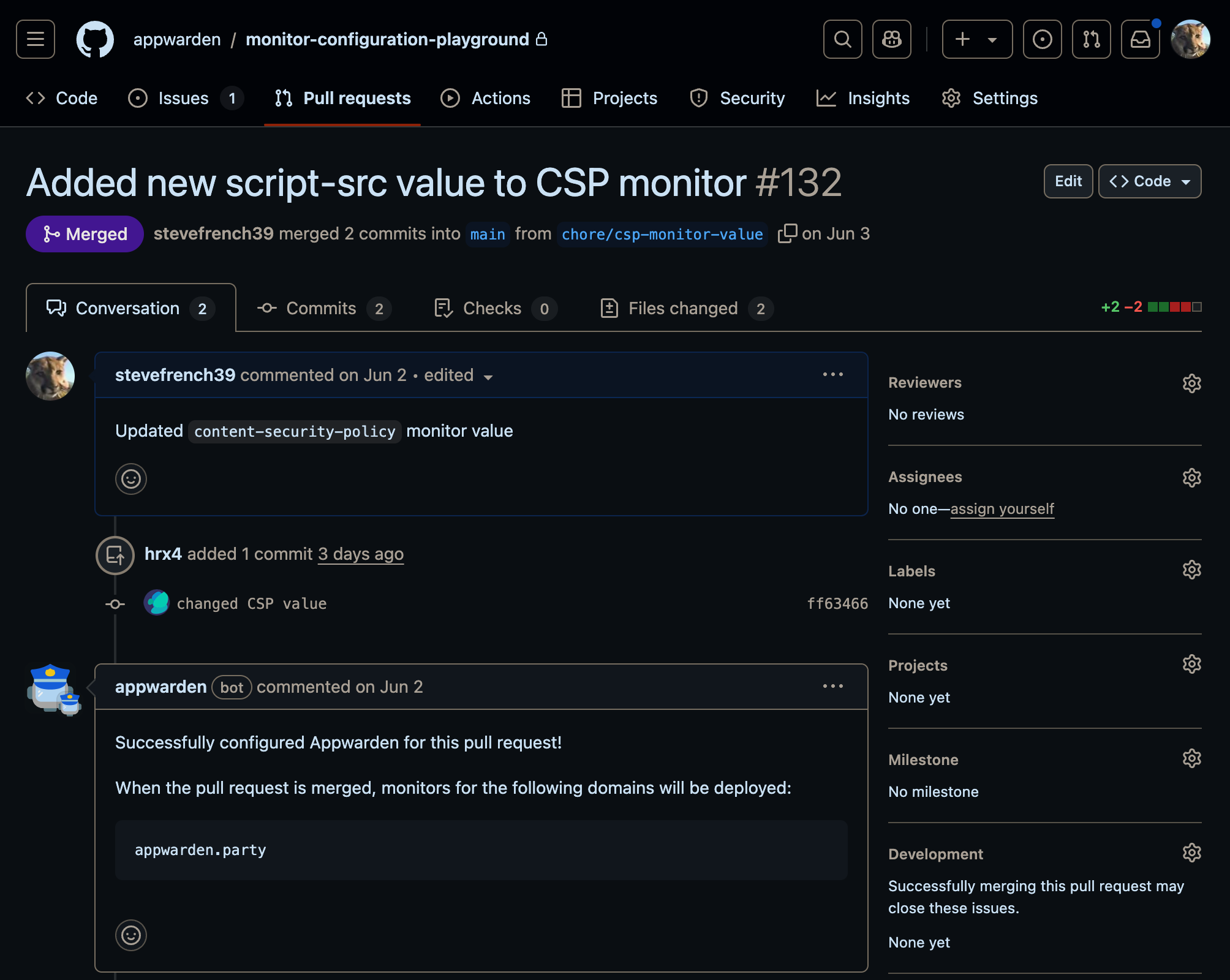
For a complete guide on domain configuration management, see the Domain Configuration page.
Once you’ve created your pull request, review and merge it to the main branch to deploy your monitors. Appwarden will reflect any changes pushed to the default branch of your domain configuration repository within a minute or so. New monitors will appear on your Appwarden dashboard.
Congratulations — Appwarden is now monitoring your domains for unexpected changes to your web infrastructure and response headers!
You will receive an incident alert if Appwarden detects a mismatch between your domain configuration and your deployed infrastructure. To resolve the incident, inspect it and make any necessary changes to your domain configuration to match your deployed infrastructure.
If you have any questions or need assistance, please don’t hesitate to reach out to us on Discord.
Next, we will cover how to set up your web project to enable you to quarantine your domain during in-progress security breaches.