
Verify your setup
Before Appwarden can control external interactions with your website, you need to verify ownership of each domain in your domain configuration. Domains are verified automatically when the Appwarden middleware successfully sends heartbeats to the Appwarden API.
If you haven’t already installed the Appwarden middleware, follow the appropriate integration guide for your platform:
Deploy your application with the middleware installed. Once the middleware sends its first successful heartbeat, your domain will be automatically marked as verified.
- Sign in to the Appwarden dashboard
- Navigate to Settings > Monitoring
- Find the Domain Verification card
The dashboard displays a table with all domains from your domain configuration. Each domain shows:
- Domain — The fully qualified domain name
- Status — An orange pulsing indicator for pending verification, or a green checkmark for verified domains
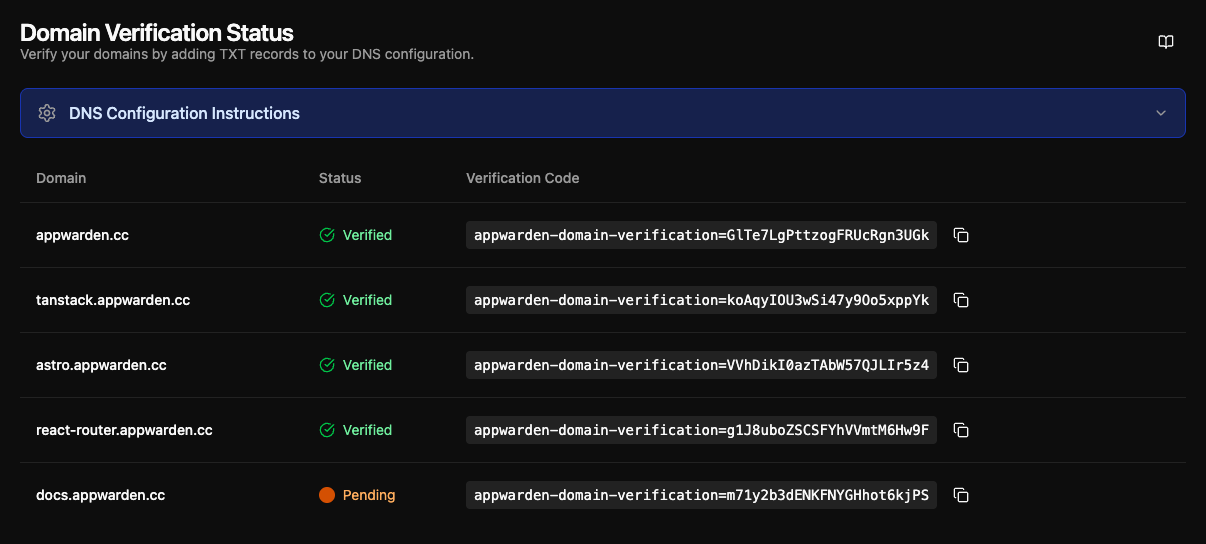
Once your middleware is deployed and sends a successful heartbeat, the status in the dashboard will update from pending (orange) to verified (green). This typically happens within minutes of deployment.
If your domain remains unverified after deploying the middleware, follow the troubleshooting steps in this guide.
If validation is still unsuccessful, join the community and ping us for assistance. We’d be happy to check your setup.
To verify that Appwarden is correctly installed in your web project, run the following command in your Discord channel:
/quarantine testAfter a few seconds, navigate to your.app/_appwarden/test in your browser.
If the lock page appears, Appwarden is correctly installed in your web project. You may re-issue the test command to unlock your test page.
If the lock page doesn’t appear after intermittently refreshing the page for up to 30 seconds, please follow the troubleshooting steps in this guide.
Appwarden creates an incident when unexpected changes to web infrastructure and response headers are detected. To see what a real incident on your domain would look like, you can simulate an incident on our test domain by running the following command in your Discord channel:
/incident testIn a few moments, an incident message and thread will appear in your Discord channel. Inspect the incident message and thread to understand more about configuration diffs and incident lifecycles.
To learn more about incidents, see the incident management guide.