
Monitor your domains for unauthorized changes
Overview
Section titled “Overview”Appwarden uses your domain configuration to continuously monitor your infrastructure and web traffic. When a mismatch is detected, an incident is communicated to your Discord server for diagnosis. This guide will walk you through the process of creating and managing your domain configuration files.
Create your domain configuration repository
Section titled “Create your domain configuration repository”Appwarden manages your domain configuration in a source-controlled GitHub repository of your choice.
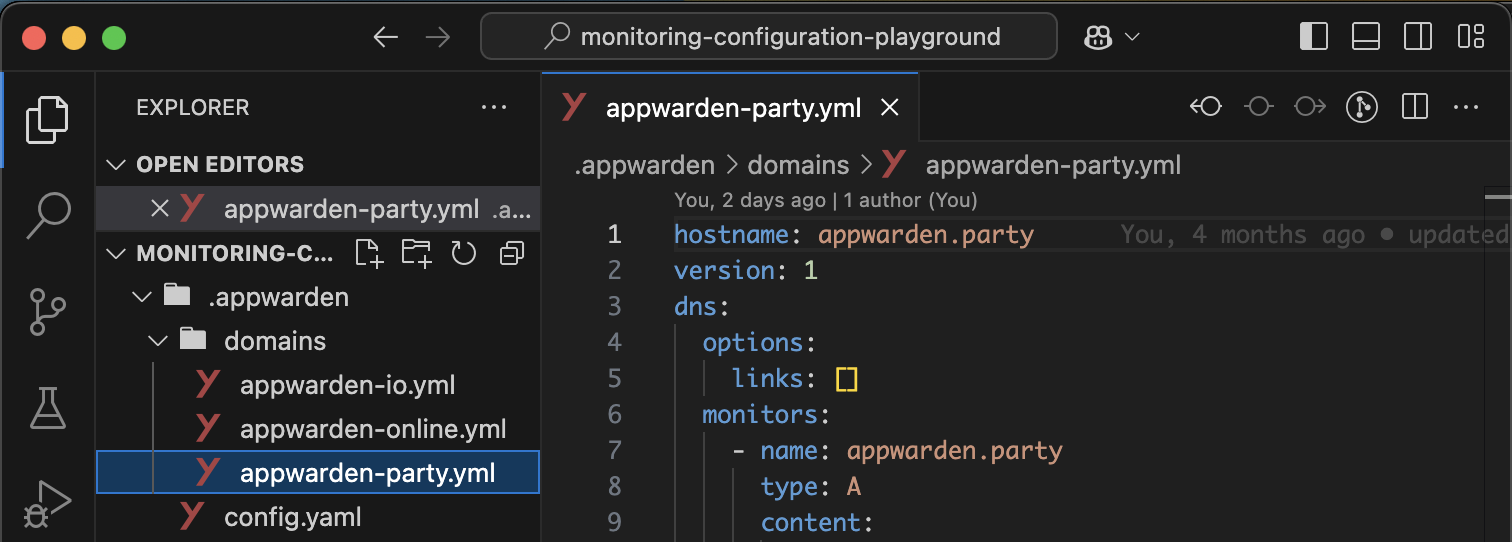
You can use our template repository or bring your own repository. This makes your Appwarden domain configuration files:
- Version controlled and auditable
- Easily accessible by your developers and security personnel
- Conveniently co-located with your infrastructure and source code
- Inherit GitHub’s outstanding security and access control features
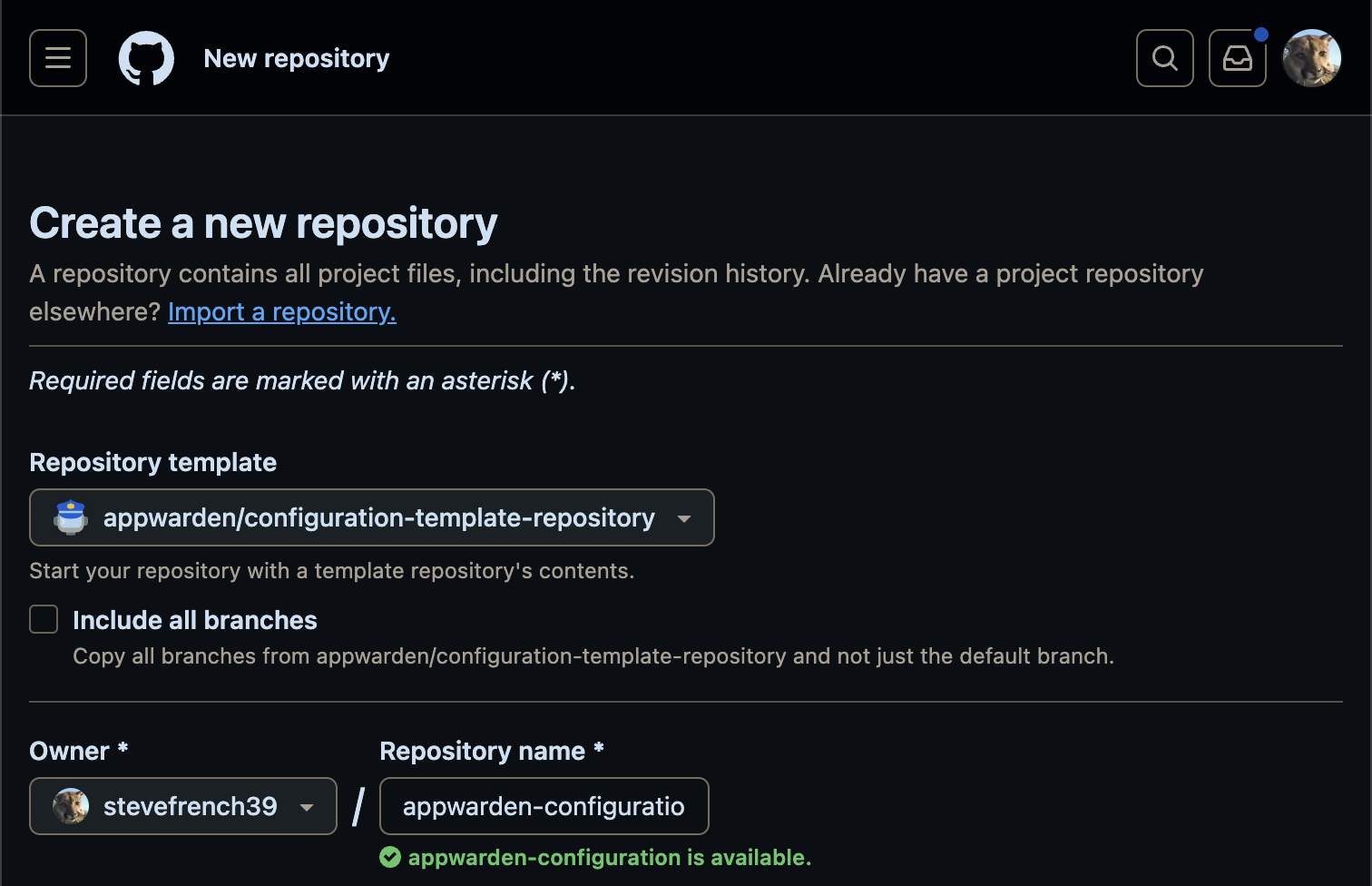
Create your Appwarden configuration repository from our template repository to manage your domain configuration. Simply choose a name for your repository and click “Create repository” to get started.
Once the repository is created, or if you want to use your own repository, you can move on to the next step. We will return to the repository later to set up your domain configuration.
Appwarden in pull requests
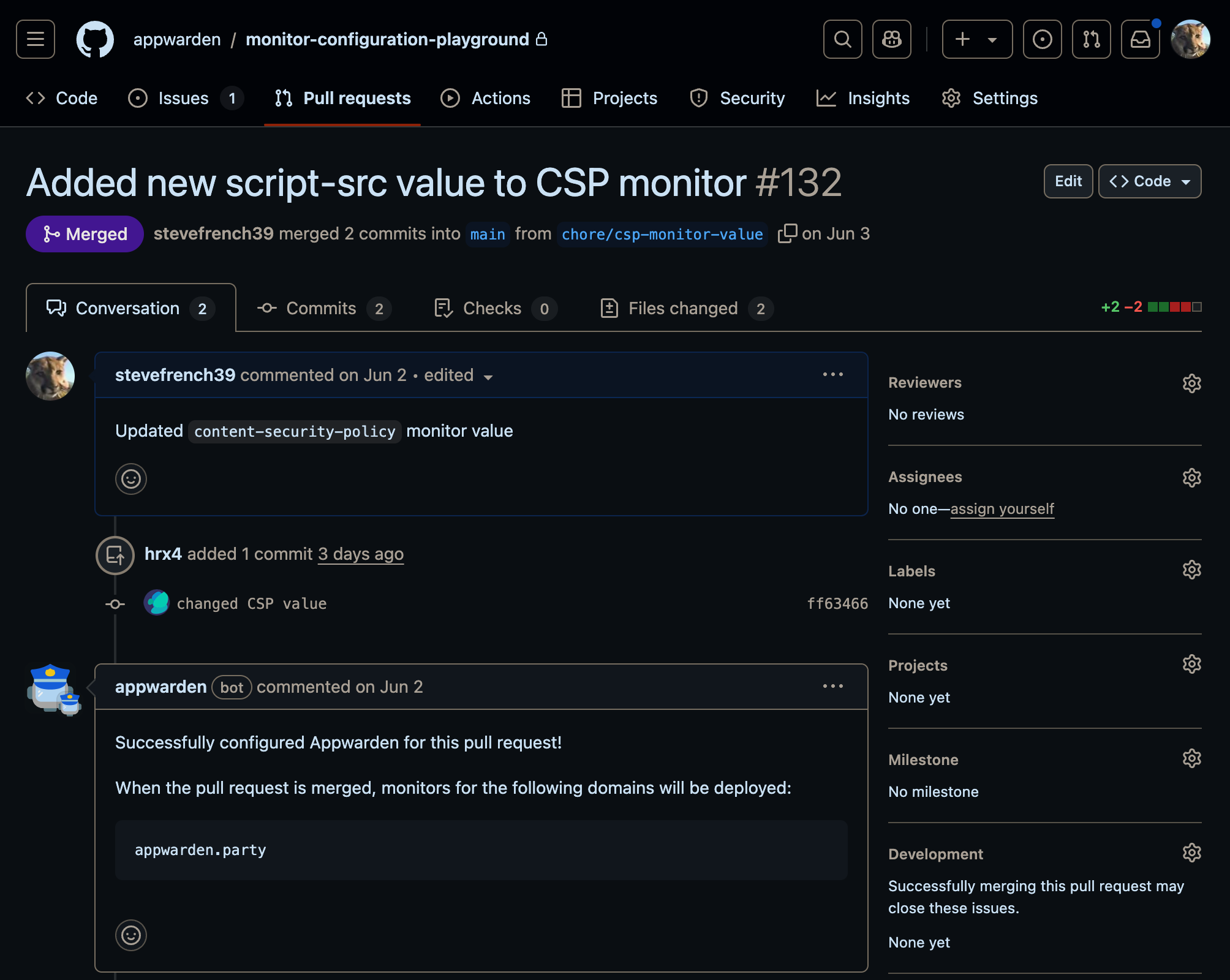
Section titled “Appwarden in pull requests”When a GitHub pull request is opened in your domain configuration repository, Appwarden will comment on configuration validation issues and deployment status changes in the pull request thread.
Appwarden uses a GitHub app to synchronize your domain configuration repository changes with Appwarden.
Although you can push changes directly to main, you should always use pull requests to make domain configuration changes. This ensures that your domain configuration is valid, peer reviewed, and approved before being merged.
Use pull requests to ensure your domain configuration correctly deploys. If faulty configuration
files are pushed directly to main, they will not be deployed and you will not be notified of the
problem.
Appwarden reported a valid domain configuration change in the pull request below and will deploy the changes when the pull request is merged.
Create a domain configuration file
Section titled “Create a domain configuration file”The Appwarden CLI generates preconfigured domain configuration files from your existing domain state. To generate domain configuration files, run the following command from the root of your domain configuration repository:
npx appwarden sync -d your.app -d app.your.appThis command will scaffold an .appwarden directory in your project and generate a domain configuration file at .appwarden/domains/your-domain.yml containing DNS records on your.app and websites on your.app and app.your.app.
Please review the results of the appwarden sync command and check that the generated domain
configuration reflects your deployed domain state. Modify any values as needed.
Updating existing domain configurations
Section titled “Updating existing domain configurations”When you run appwarden sync on a domain configuration file that already exists, the command will intelligently merge your changes:
- Preserves middleware configuration: Any middleware settings (such as CSP directives and lock page configuration) remain intact
- Preserves DNS and website options: Existing
dns.optionsandservices.options(such as links) are maintained - Selective monitor updates: Only DNS and website monitors for domains specified with
-dflags are updated
For example, if your configuration file monitors example.com, api.example.com, and cdn.example.com, running:
npx appwarden sync -d example.comWill fetch and update the DNS and website monitors for example.com only, while preserving all monitors for api.example.com and cdn.example.com, as well as any middleware configuration and options you’ve set up.
Domain configuration file structure
Section titled “Domain configuration file structure”A domain configuration file is scoped to a specific hostname and tagged with a version. For the purpose of DNS and website monitoring, it contains two primary top level sections, dns and services. Each section contains lists of monitors. The middleware section is used to configure the Appwarden middleware with Content Security Policy (CSP) and lock page settings.
hostname: your.appversion: 1dns: options: links: - label: DNS Dashboard url: your-dns-dashboard.com monitors: - name: your.app type: A content: # This is the first nested record - content: 104.21.73.192 # This is the second nested record - content: 172.67.165.113 - name: your.app type: SOA content: anastasia.ns.cloudflare.com. dns.cloudflare.com. validator: starts-withservices: options: links: - label: Website metrics url: your-metrics-dashboard.com monitors: - url: your.app status: 200 headers: - name: content-type value: text/html validator: starts-with - url: app.your.app status: 200 headers: - name: server value: cloudflare - name: referrer-policy value: strict-origin-when-cross-origin middleware: - url: app.your.app options: bypass-paths: - /health - /api/webhooks/* website: lock-page-slug: /maintenance csp-mode: report-only csp-directives: script-src: - "self" - "{{nonce}}" - https://cdn.jsdelivr.net api: base-paths: - /api - /internal response: status: 503 body: '{"error":"Service unavailable"}' headers: - name: content-type value: application/jsonThis domain configuration file contains two dns monitors, two website monitors, and a middleware configuration. The dns monitors define two A records and an SOA record starting with the content field that should exist on your deployed infrastructure. The website monitors defines that the response status code is 200 and that the enumerated headers are present in the response.
Version
Section titled “Version”The version field indicates the file schema version. The current version is 1.
Hostname
Section titled “Hostname”The hostname field indicates the domain that this configuration file is scoped to. All enumerated websites must be subdomains of the root hostname field.
Monitors
Section titled “Monitors”DNS records can be listed individually as seen in the SOA record or conveniently grouped by type fields as shown in the example above for A records.
Websites
Section titled “Websites”All enumerated websites must be subdomains of the root hostname field.
Monitors
Section titled “Monitors”Each website monitor contains a url, status, and headers field. The headers field contains a list of headers to monitor for each website.
Middleware
Section titled “Middleware”The middleware field is used to configure the Appwarden middleware for Cloudflare-powered websites. The url field specifies the subdomain to apply the middleware configuration on. The options field contains bypass-paths, website, and api. For more information on middleware options, please refer to the Middleware reference.
options.bypass-paths
Section titled “options.bypass-paths”A list of paths that should pass through the middleware unchanged while the site is quarantined. These paths are evaluated first. A trailing * matches any path under that prefix, so /api/webhooks/* matches /api/webhooks/stripe and /api/webhooks/stripe/invoice.
options.website
Section titled “options.website”Configures the HTML lock page for visitors. It contains the lock-page-slug, and optionally csp-mode and csp-directives.
options.api
Section titled “options.api”Configures API paths under the same hostname. It contains base-paths and an optional response.
If response is omitted, the middleware returns a default 503 Service Unavailable response with a JSON body of {"error":"Service unavailable"} and content-type: application/json.
Matching order
Section titled “Matching order”When a request arrives, the middleware evaluates rules in this order:
bypass-paths— pass through unchanged.api.base-paths— return the configured API lock response.website— redirect or rewrite to the HTML lock page.
Segment-boundary matching
Section titled “Segment-boundary matching”bypass-paths and api.base-paths match segment boundaries. /api matches /api/users but does not match /api-docs. Use a trailing * to match an entire prefix, such as /api/*.
If your website is on Vercel, Appwarden is configured directly in your middleware.ts
file.
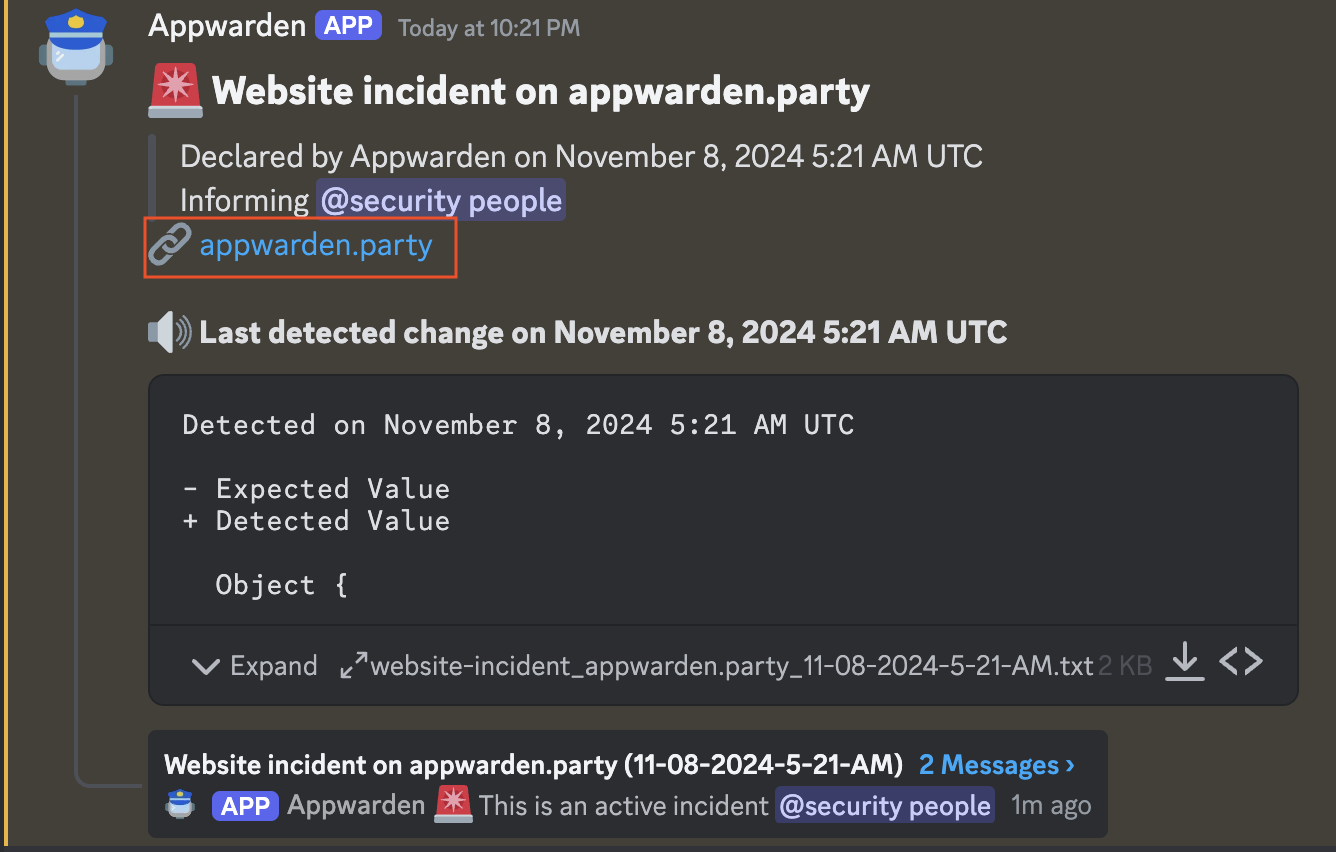
You may add links to the options field to provide quick access to critical dashboards during an incident. When an incident is created, the incident message will contain links corresponding to the values in dns.options.links and services.options.links.
Comments
Section titled “Comments”You may add YAML comments (lines starting with #) to describe the contents or purpose of any entry.
dns: monitors: - name: your.app type: A content: # This is the first nested record - content: 104.21.73.192 # This is the second nested record - content: 172.67.165.113Validators
Section titled “Validators”Validators are used to validate the value of a DNS record or web response header.
Supported validators
Section titled “Supported validators”-
starts-with- The detected value must start with this expected value. Useful for DNS records with dynamic values such asSOArecords that start with static values and end with dynamic values (e.g.ns1.cloudflare.com. dns.cloudflare.com. 2026021701 10000 2400 604800 3600)If you have need for other validators, please reach out in our community.
services: monitors: - url: your.app status: 200 headers: - name: content-type value: text/html validator: starts-withLimits
Section titled “Limits”-
You can monitor up to three domains with Appwarden.
-
The maximum file size for a domain configuration file is 60kb.
These global limits are in place for abuse prevention. If you need higher limits, we’re happy to work with you — please reach out in our community.