
Onboard your organization
Appwarden integrates with your existing development and communication workflows to provide a seamless experience for your infrastructure and security teams to safeguard your web3 platform. This guide will walk you through the process of onboarding your organization with Appwarden.
The easiest way to set up Appwarden is through the guided onboarding flow in the Appwarden dashboard. Sign in with your Discord account to be guided through the process.
Sign in to the Appwarden dashboard to complete setup with a guided onboarding experience
The dashboard will guide you through each step of the setup process:
- Discord Integration — Connect your Discord server to receive alerts
- Create Domain Configuration Repository — Set up a GitHub repository for your domain configurations
- Install GitHub App — Connect your GitHub organization to manage your domain configurations
- Select Repository — Associate Appwarden with your domain configuration repository
The sections below provide detailed instructions for each step if you prefer to set things up manually or need additional reference.
To interact with Appwarden, you will need to add the Appwarden Discord bot to your Discord server. The bot can issue Appwarden commands and communicates when suspicious activity is detected on an Appwarden-protected domain.
Add the Discord bot to your Discord server to interact with Appwarden
After adding the bot to your server, you’ll need to run a setup command to link your Discord server with your Appwarden organization. The dashboard will provide you with a unique setup code. Run the following command in the Discord channel where you want to receive Appwarden notifications:
/settings setup code:[setup_code_value]Appwarden adheres to the security best practice of least privilege access. By default, only Server Administrators can interact with Appwarden. To grant access to other users and roles, navigate to Discord Server Settings > Integrations > Appwarden and update each command in the Commands list with the desired user and role access.
To grant your security team access to issue Appwarden commands, we recommend creating a
@security role in Discord and associating it with each Appwarden command. Read Discord’s
documentation on command
permissions
for more information.
In addition to Discord command permissions, you can control what team members can access in the Appwarden dashboard by assigning roles and permissions. Learn more in the roles and permissions guide.
Appwarden continuously monitors your infrastructure and web traffic against your domain configuration and creates an incident when a mismatch is detected. You will manage your domain configuration in a source-controlled GitHub repository of your choice.
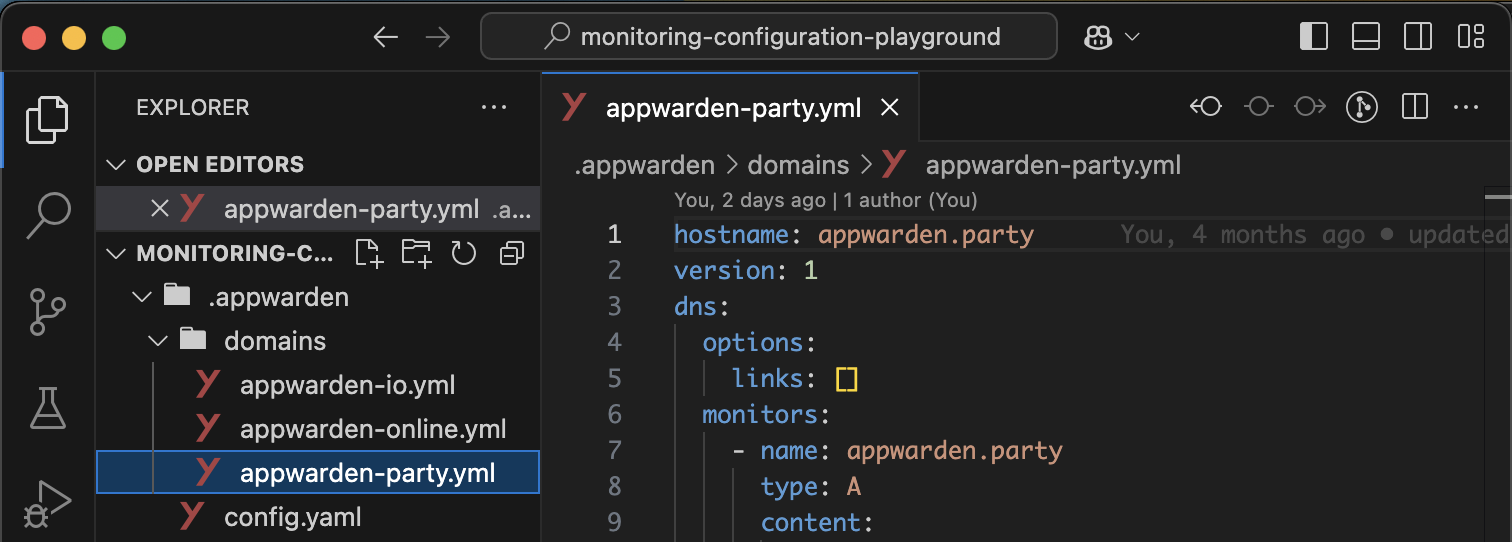
We recommend using our template repository to bootstrap your Appwarden domain configuration. It comes Appwarden folder scaffolding and a CLI to quickly generate domain configuration files as well as a template GitHub Actions workflow for seamlessly deploying the Appwarden middleware to Cloudflare. This makes your Appwarden domain configuration:
- Version controlled and auditable
- Easily accessible by your developers and security personnel
- Conveniently co-located with your infrastructure and source code
- Inherit GitHub’s outstanding security and access control features
Create your Appwarden configuration repository from our template repository to manage your domain configuration
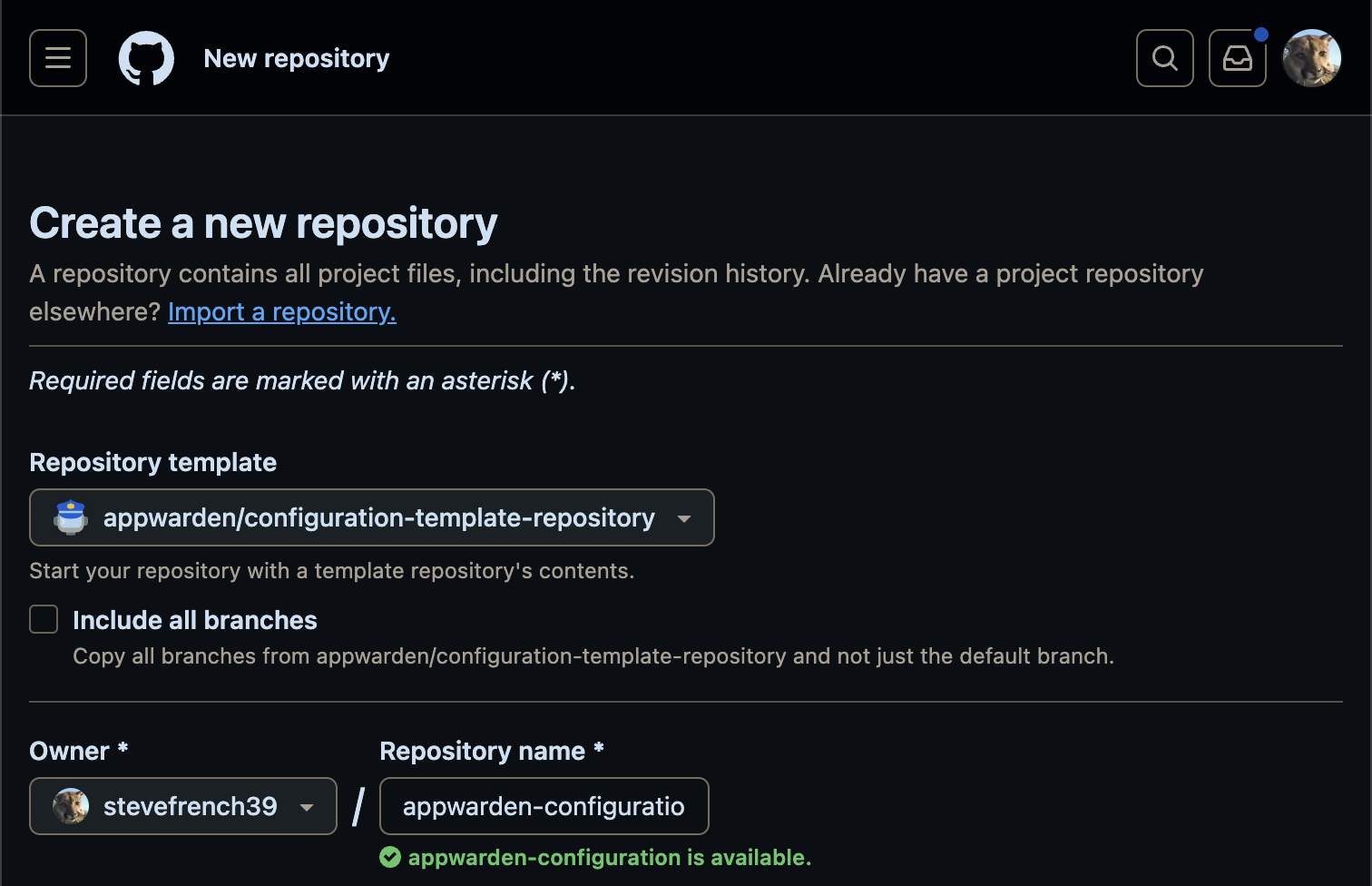
Once the repository is created, continue to the next step to install the GitHub App.
Appwarden’s GitHub App integration synchronizes your domain configuration with Appwarden, allowing you to manage your domain configuration directly from any GitHub repository.
The Appwarden GitHub App installation flow must be initiated from the Appwarden dashboard.
When installing the GitHub App, we recommend following the security best practice of least privilege:
- Choose “Only select repositories” instead of “All repositories”
- Select only your Appwarden domain configuration repository
- Complete the installation
This ensures Appwarden only has access to the repositories it needs.
After installing the GitHub App, return to the Appwarden dashboard to associate your domain configuration repository with Appwarden. The dashboard will list all repositories the GitHub App has access to.
To function properly, the GitHub app only requires access to your domain configuration repository. To follow best practices, we recommend limiting access to only the domain configuration repository.
Select your domain configuration repository to complete onboarding. You’ll be taken to your organization dashboard where you can monitor your domains and manage your Appwarden configuration.
Continue on to the next page to set up your Appwarden domain configurations.