
Testing quarantine and CSP before launch
Before launching your production website with Appwarden protection, it’s critical to verify that both quarantine functionality and, optionally, Content Security Policy (CSP) configuration work correctly. This guide walks you through end-to-end testing to ensure your infrastructure is properly configured and ready to protect your users.
Testing before launch helps you:
- Confirm middleware deployment: Verify the middleware is running and communicating with Appwarden
- Validate quarantine functionality: Test that you can lock and unlock your domain from Discord
- Refine your CSP: Safely test Content Security Policy in report-only mode before enforcement
- Catch configuration errors: Identify and fix issues before they impact production users
Before testing, ensure you’ve completed the following setup steps:
- Onboard your organization: Complete the onboarding guide to connect Discord, GitHub, and create your domain configuration repository
- Deploy the middleware: Follow the project integration guide for your platform (Vercel or Cloudflare) to install and deploy the Appwarden middleware
Once these prerequisites are met, you’re ready to begin testing.
The first step is confirming your middleware was successfully deployed and is running on your domain.
debug: true in your middleware options and redeploy.Verify the deployment succeeded by checking your provider’s logs:
For Vercel deployments:
- Navigate to your project in the Vercel dashboard
- Go to the Deployments tab
- Click on your most recent deployment
- Review the deployment logs for successful completion
- Look for any errors related to middleware installation
For Cloudflare deployments using GitHub Actions:
- Navigate to your domain configuration repository on GitHub
- Go to the Actions tab
- Find your most recent Deploy Appwarden workflow run
- Click on the workflow run to view details
- Review the deployment logs for successful completion
- Confirm the worker was deployed to Cloudflare

Next, inspect your application logs to confirm the middleware is running correctly and communicating with Appwarden.
For Vercel deployments:
- Navigate to your project in the Vercel dashboard
- Go to the Logs tab (under your project settings)
- Filter logs to show real-time activity
- Visit your website to trigger a request
- Look for Appwarden middleware log entries indicating successful heartbeats
For Cloudflare standalone middleware:
Use the Cloudflare Workers CLI to tail logs from your deployed worker:
wrangler tail appwarden-productionVisit your website to trigger requests and observe the middleware logs. You should see log entries for:
- Successful API heartbeats to Appwarden
- Middleware initialization
- Request processing
For Cloudflare framework adapters:
If using a framework-specific adapter (Astro, React Router, TanStack Start, Next.js), tail your application’s worker logs:
wrangler tail <your-project-name>Visit your website and look for Appwarden-related log entries confirming the middleware is active.
If you don’t see any Appwarden logs, verify your API token is correctly configured in your environment variables and that the middleware is properly installed.
Once you’ve confirmed the middleware is deployed and running, test the quarantine functionality using Discord commands.
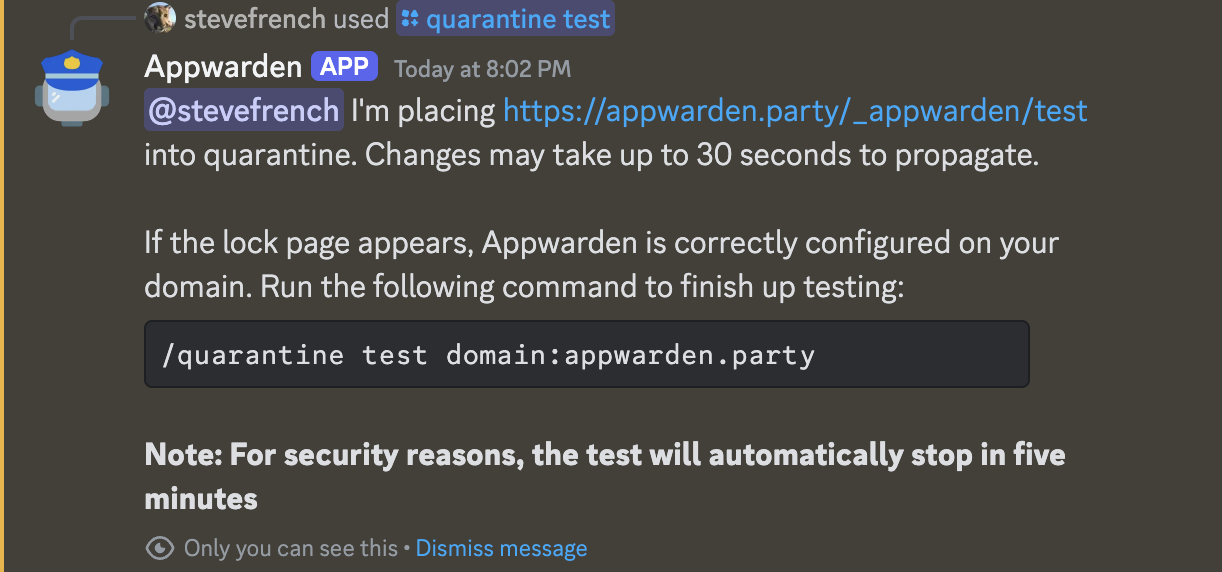
From your Discord monitoring channel, run the test command:
/quarantine testAfter selecting your domain, Appwarden will place the /_appwarden/test route into quarantine.
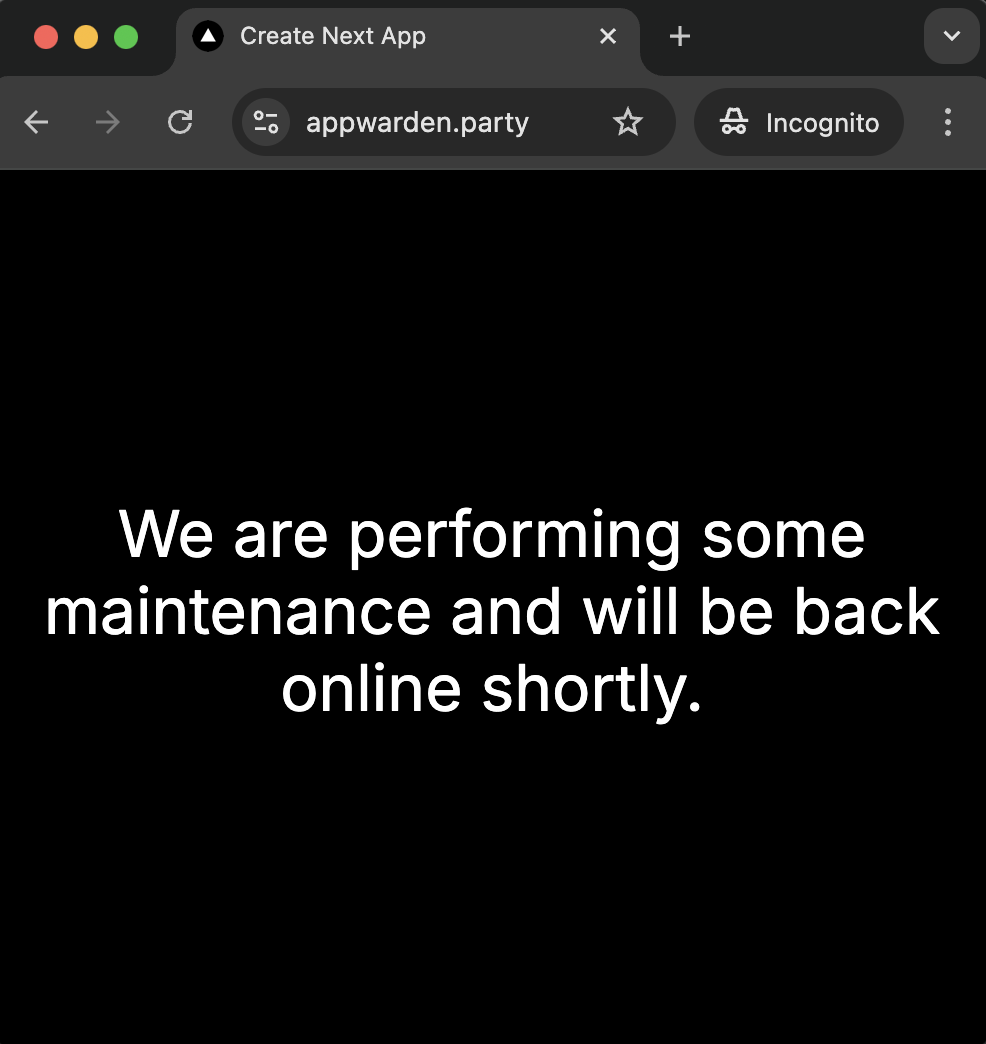
Navigate to https://your.app/_appwarden/test in your browser. You should be redirected to your configured lock page (e.g., /maintenance).
While the test route is quarantined, monitor your middleware logs:
For Vercel: Check the Vercel logs for quarantine-related entries
For Cloudflare:
Keep wrangler tail running and observe the logs when you access the test route
You should see log entries indicating:
- The middleware detected the quarantine status
- Requests were redirected to the lock page
- No errors occurred during the redirect
Once you’ve confirmed the test route redirects correctly, unlock it:
/quarantine testRunning the test command again toggles the test route back to normal operation.
If the test route doesn’t redirect to your lock page, refer to the lock page setup troubleshooting guide for common issues and solutions.
CSP features are only available for projects deployed on Cloudflare. Due to platform limitations, CSP is not supported on Vercel.
Content Security Policy is a powerful security feature that protects against code injection attacks. However, misconfigured CSP can break your website. Testing in report-only mode lets you safely validate your policy before enforcement.
In your domain configuration file, set your CSP to report-only mode:
hostname: your.appversion: 1websites: middleware: - url: your.app options: lock-page-slug: /maintenance csp-mode: report-only csp-directives: script-src: - "self" - "{{nonce}}" style-src: - "self" - "{{nonce}}" # Add other directives as neededCommit and push your changes, then redeploy your Appwarden middleware following the deployment instructions.
With report-only mode enabled, your CSP won’t block any resources—it will only report violations. Use your browser’s Developer Tools to identify violations:
- Open your website in a browser
- Open Developer Tools (F12 or right-click → Inspect)
- Navigate to the Console tab
- Look for CSP violation warnings (they’ll be clearly marked)
Example CSP violation message:
[Report Only] Refused to load the script 'https://example.com/script.js'because it violates the following Content Security Policy directive:"script-src 'self' 'nonce-abc123'".Based on the violations you see in the console:
- Identify legitimate resources: Determine which violations are from your own resources vs. third-party services
- Update your CSP directives: Add necessary domains to your CSP configuration
- Test iteratively: Redeploy with updated directives and retest until violations are resolved
Example of adding a third-party domain:
csp-directives: script-src: - "self" - "{{nonce}}" - "https://cdn.example.com" # Add legitimate third-party domainsOnce you’ve resolved all CSP violations and confirmed your website works correctly in report-only mode, switch to enforced mode:
csp-mode: enforcedRedeploy your middleware and verify that:
- Your website functions correctly
- No console errors appear
- All legitimate resources load successfully
Learn more about managing your Content Security Policy in the CSP management guide.
After completing these tests, you’re ready to go live with Appwarden protection:
- Monitor your domain: Keep an eye on the Appwarden dashboard for any incidents
- Configure team alerts: Set up PagerDuty integration to notify your team during incidents
- Review incident procedures: Familiarize your team with incident management workflows
- Test full quarantine: Consider running a planned
/quarantine locktest during off-hours to ensure your team is prepared for an emergency
Questions about testing or running into issues? Join our community and we’ll help you get set up.