
Declare and manage incident lifecycles
Overview
Section titled “Overview”In Appwarden, an incident is any situation that needs your team’s attention, assessment, and possible response (e.g. domain quarantine) to a threat. It might be caused by a serious security breach, reported by a team member who identifies a significant vulnerability, or flagged during routine maintenance.
Appwarden gives you the tools to declare and manage incidents from the Appwarden Dashboard. You can also use Discord or Slack for paging incidents. This guide will walk you through the process of creating, managing, and reviewing incidents.
Incident Types
Section titled “Incident Types”Appwarden defines two types of incidents, declared and detected.
- Incidents that are declared by you or your team from the Appwarden Dashboard.
- Incidents that are automatically detected by Appwarden.
Declared Incident
Section titled “Declared Incident”A declared incident is an incident that your team manually declares from the Appwarden Dashboard. Declared incidents are typically used to communicate planned changes, code bugs, maintenance windows, or other situations that Appwarden is unable to automatically detect.
Declare a declared incident
Section titled “Declare a declared incident”To declare an incident, visit your organization’s Incidents page in the Appwarden Dashboard and click Declare incident. You must have the write:incidents permission.
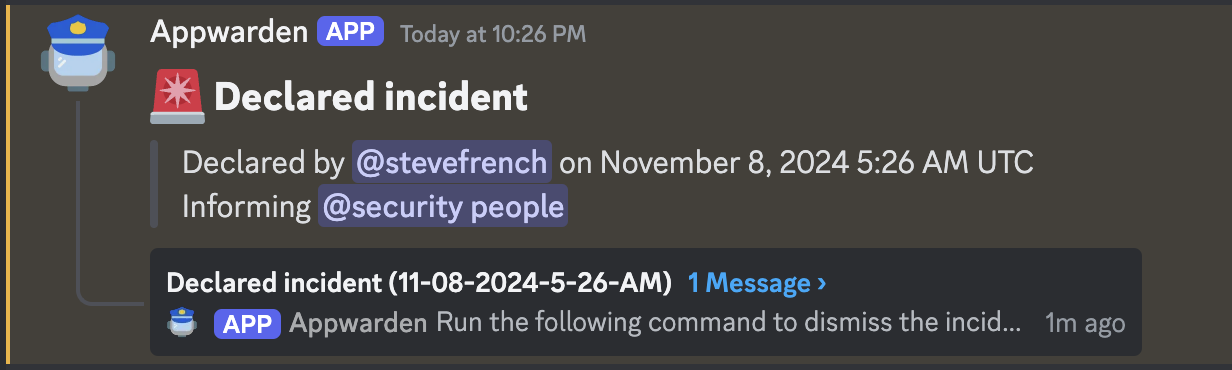
When an incident is declared, Appwarden creates an incident message and communication thread in your Discord channel or Slack channel to notify your team, as well as optionally paging your team members via PagerDuty.
Resolve a declared incident
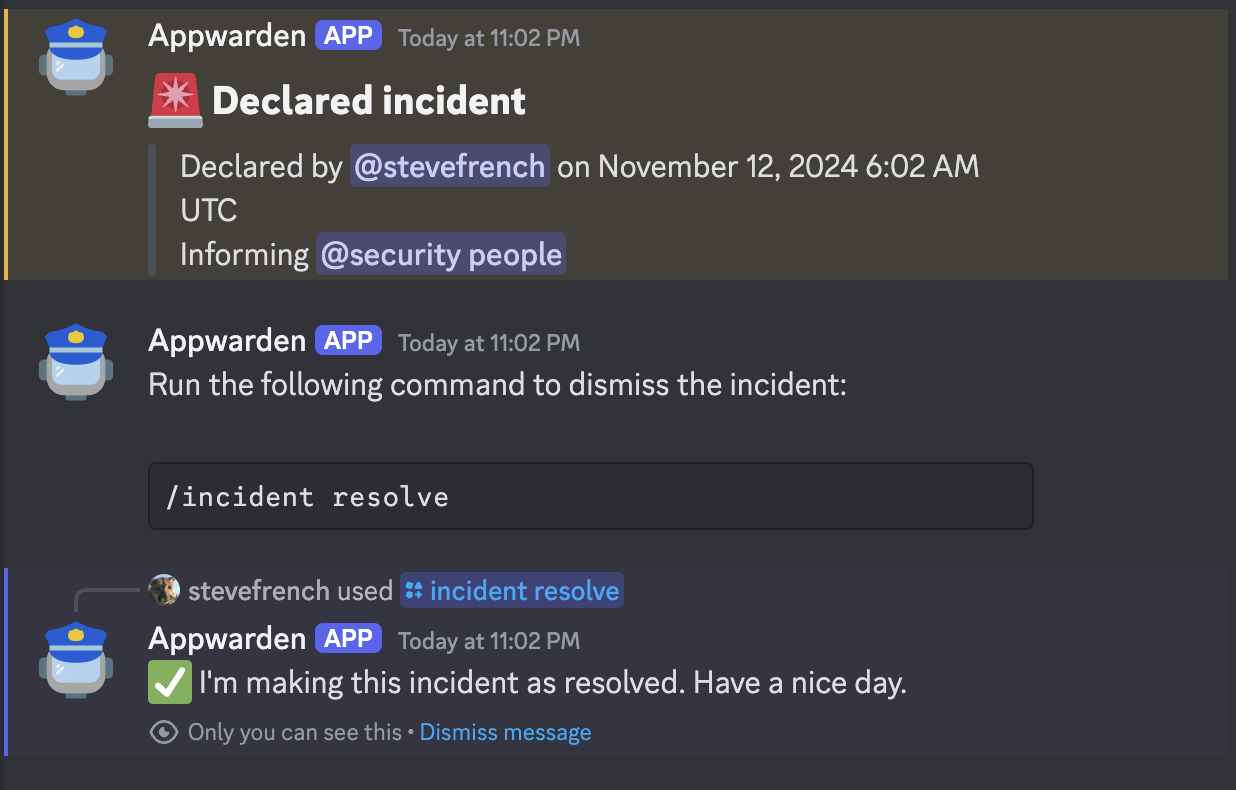
Section titled “Resolve a declared incident”To resolve a declared incident, visit your organization’s Incidents page in the Appwarden Dashboard and click Resolve incident on the active declared incident card. You must have the write:incidents permission.
Once resolved, the incident thread will remain visible in your Discord channel or Slack channel for historical reference. You can declare another incident at any time.
Detected Incident
Section titled “Detected Incident”Detected incidents are automatically triggered by Appwarden when we detect a difference between your deployed web infrastructure or website response headers and your Appwarden domain configuration.
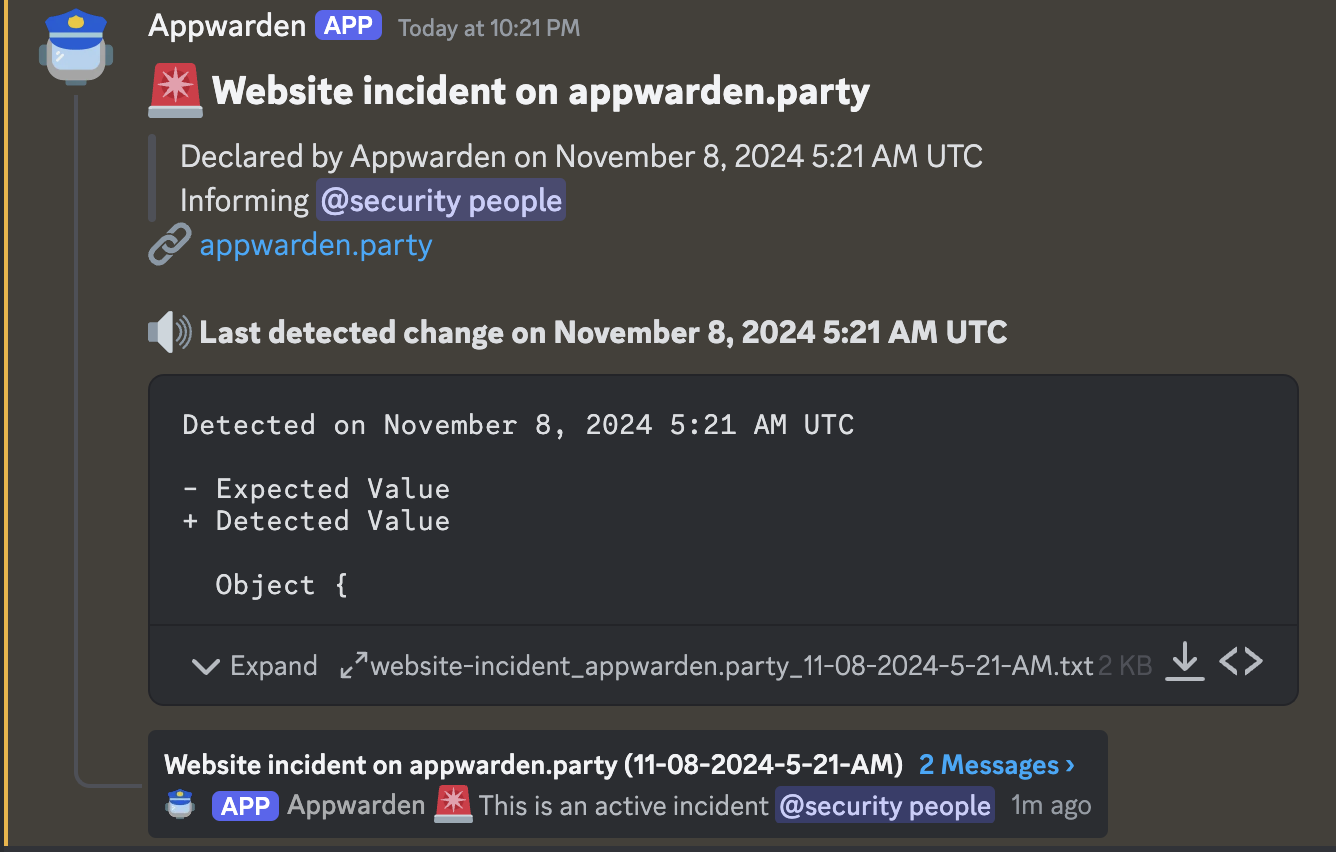
When a detected incident is identified, Appwarden creates an incident message and thread in your Discord channel or Slack channel to notify your team, and optionally notifies your team members via PagerDuty. The incident message contains a configuration diff that highlights the detected mismatch between your deployed infrastructure and domain configuration that triggered the incident.
Domain configuration link
Section titled “Domain configuration link”When an incident is detected, Appwarden automatically includes a link to the relevant domain configuration file. This link takes you to the specific file and line number that contains the expected configuration values making it easy to review the source of the incident.
Here’s an
example
of a domain configuration link destination for a DNS record mismatch incident on example.com.
Configuration diffs
Section titled “Configuration diffs”A configuration diff is a visual representation of the difference between an expected domain configuration value and the detected value on your deployed infrastructure. Diffs are displayed in a format that highlights the differences between the expected and detected values.
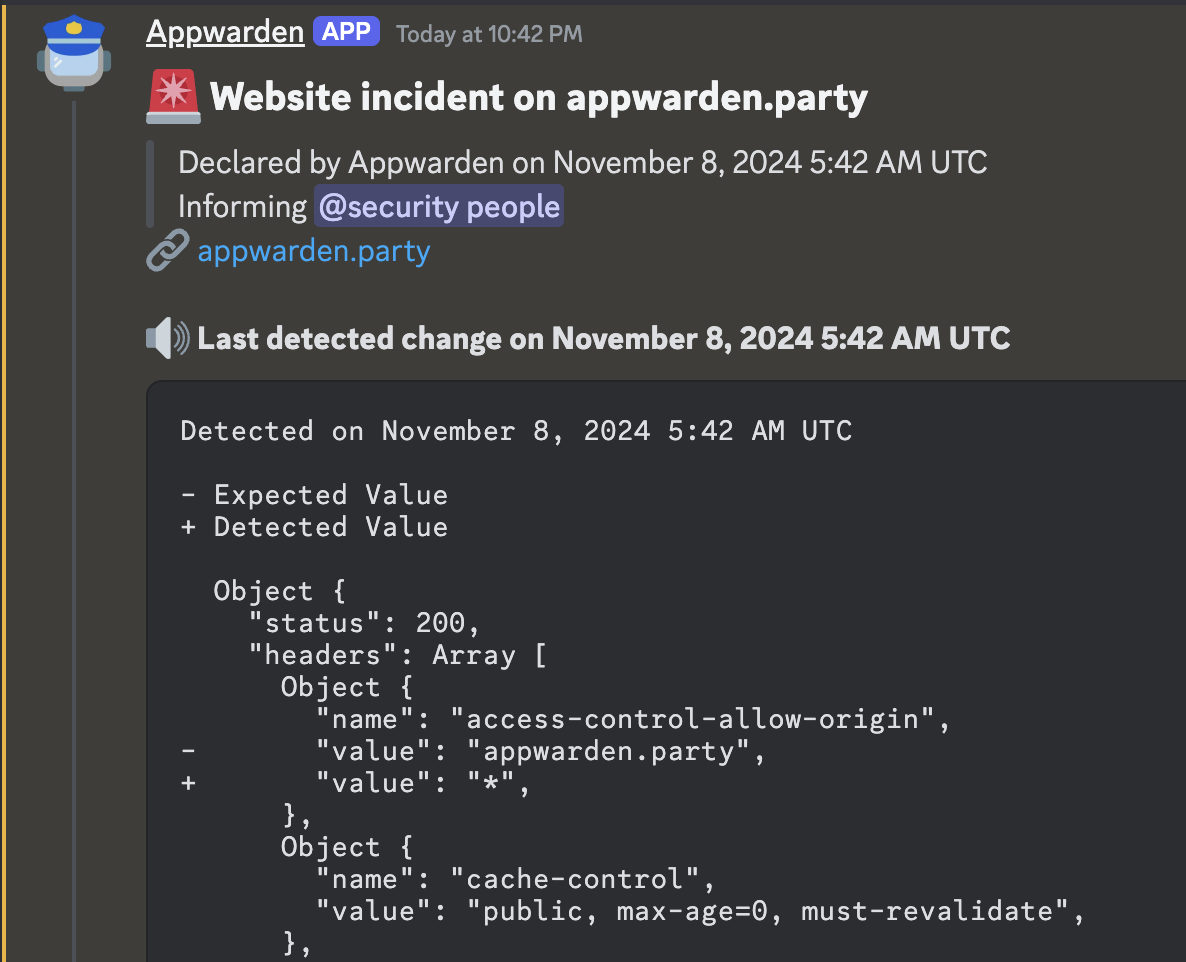
In a configuration diff, lines prefixed with - indicate removed text, and lines prefixed with + indicate an added text.
To illustrate, our domain configuration contains a TXT record that enforces an SPF policy on our domain. The expected value is v=spf1 include:_spf.google.com ~all, but the detected value is include:_spf.google.com ~all. The diff communicates that v=spf1 was expected to be present in the DNS record but was deleted in the detected configuration.
Detected on July 30, 2024 9:05 PM UTC
- Expected Value+ Detected Value
Array [ Object { "name": "appwarden.party", "type": "TXT", "content": Array [ Object {- "content": "v=spf1 include:_spf.google.com ~all",+ "content": "include:_spf.google.com ~all", }, ], }, ]In the following detected incident, the configuration diff communicates that the access-control-allow-origin header was expected to be appwarden.party but * was detected, indicating a change to a critical security header.
Configuration diff updates
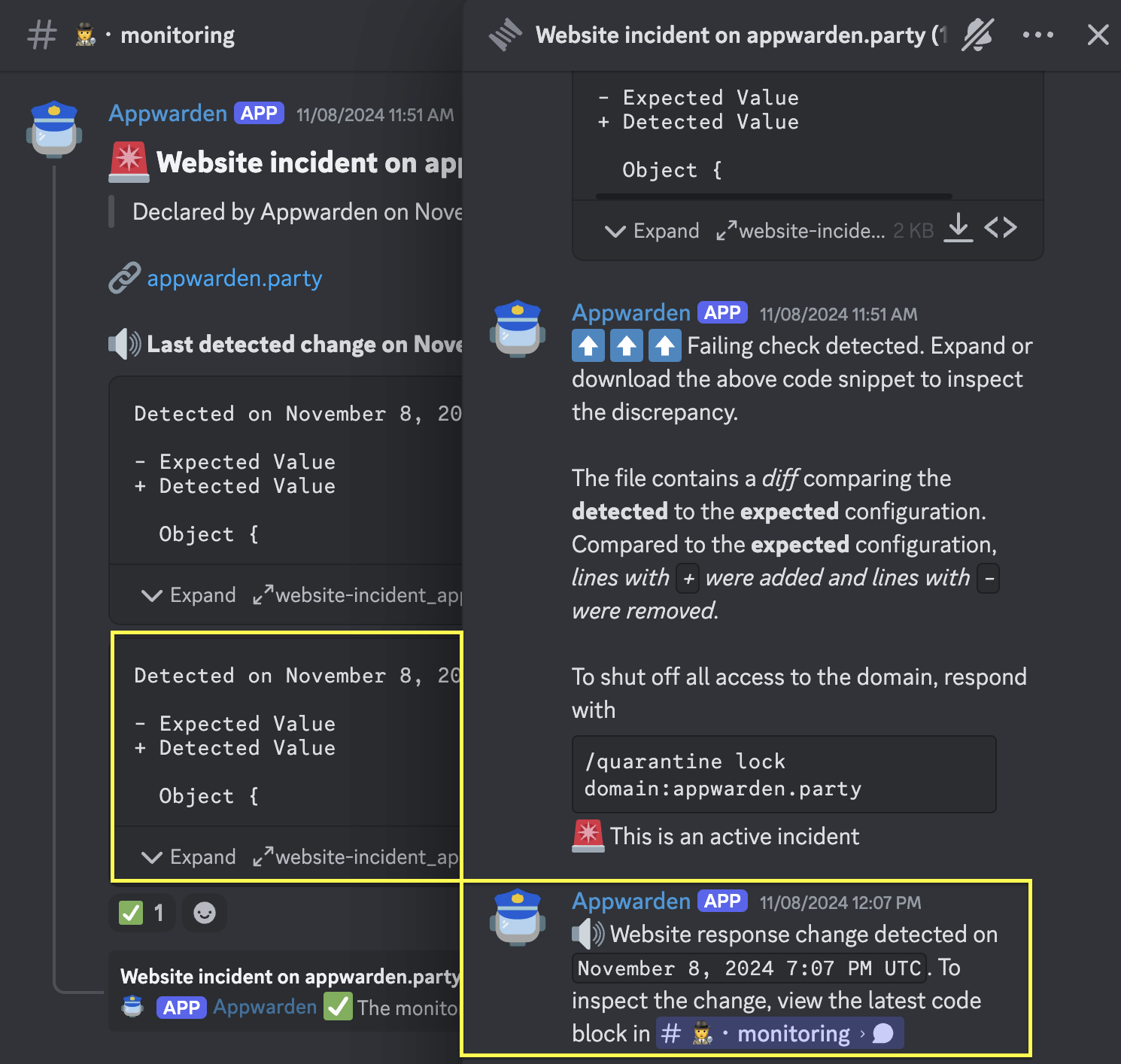
Section titled “Configuration diff updates”During a detected incident, the detected and/or expected configuration may change as Appwarden continues to monitor your domain. Appwarden will update the incident message and thread with the latest configuration diff to reflect the latest state of the incident.
A new configuration diff is generated any time a change is made that does not resolve the incident.
- A change to the detected value in your deployed infrastructure that does not match the expected value in your domain configuration.
- A change to the expected value in your domain configuration that does not match the detected value in your deployed infrastructure.
Appwarden will signal when a new configuration diff is available and update the incident message latest diff.
Resolve a detected incident
Section titled “Resolve a detected incident”To resolve a detected incident, first determine the source of the detected mismatches between your deployed infrastructure and domain configuration. The source of the mismatch may be:
- Were security policies modified or removed?
- Were critical infrastructure records modified or removed?
- Was the change made by a team member or trusted third-party?
If the change appears to be malicious or otherwise harmful, you should consider quarantining the domain to shut off interaction with your domain while you safely resolve the issue.
Once the source of the issue is identified, synchronize your expected and detected values by determining whether you need to update your domain configuration or your deployed infrastructure. If you update your domain configuration files, make sure to merge your changes to your configuration repository’s main branch to synchronize the changes with Appwarden.
It normally takes 2-3 minutes for domain configuration file updates to be reflected by Appwarden.
When the detected configuration diff is resolved, Appwarden will automatically mark the detected incident as resolved.
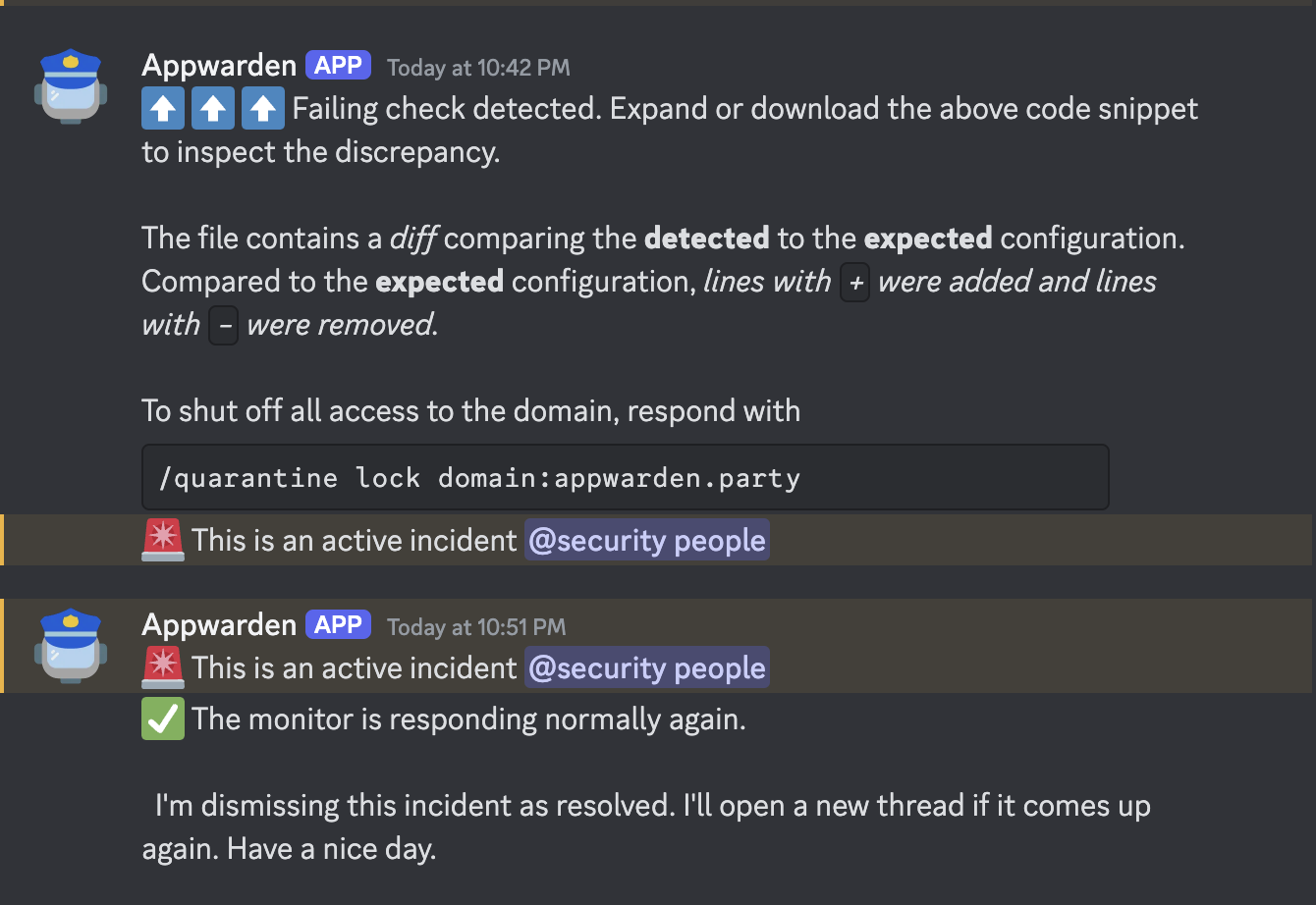
The incident thread will remain visible in your Discord channel or Slack channel for historical reference.
Test incident functionality
Section titled “Test incident functionality”To see how Appwarden handles a real incident without affecting your production domains, you can trigger a test incident using Appwarden’s test domain from the Incidents page in the Appwarden dashboard by clicking Run test incident.
When you run a test incident, Appwarden will:
- Trigger an incident on the test domain
test.appwarden.io - Detect a missing
content-security-policyheader that would leave the website exposed to common attack vectors - Create a test incident message and thread in your Discord channel or Slack channel
- Automatically resolve the incident after a couple of minutes
This allows your team to experience the full incident lifecycle — from detection to resolution — without involving your own domains.
Page your team via PagerDuty
Section titled “Page your team via PagerDuty”If you have PagerDuty integration configured, you can manually send a page to your on-call team members directly from Discord or Slack.
Discord:
/incident pageSlack:
/incident pageIn Discord, /incident page triggers a PagerDuty alert directly. In Slack, declare an incident with /appwarden-incident <description>; if PagerDuty is configured, the declared incident will also page your team members. Use these when you need to escalate an issue or ensure your team is immediately notified of a situation that requires attention.
Paging requires PagerDuty integration to be configured for your organization. See the PagerDuty integration guide for setup instructions.