
Protect your Vercel project with Appwarden
Add Appwarden to your web project to help stop in-progress security breaches. When you issue the /quarantine lock command from Discord, Appwarden will quarantine your website and redirect all traffic to your lock page.
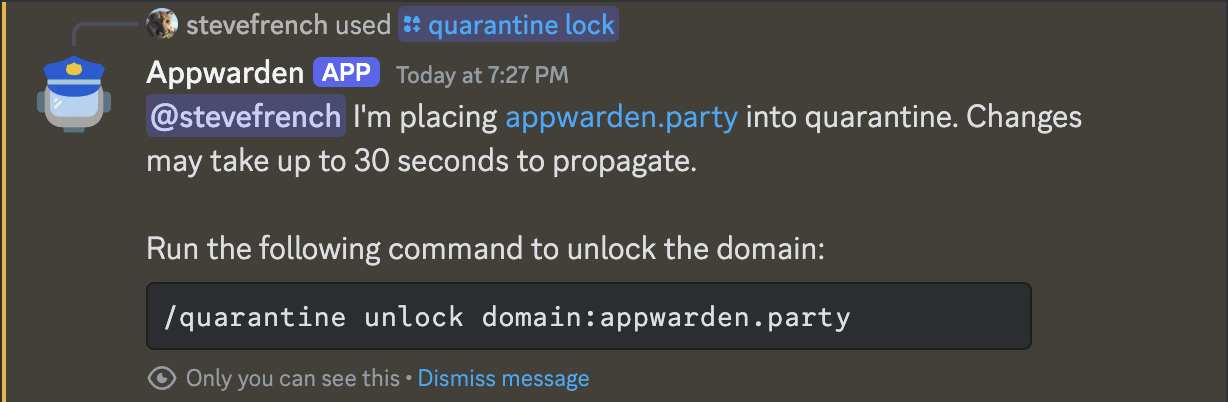
This guide walks you through configuring and deploying the Appwarden middleware to your Vercel project. Appwarden integrates with Vercel Routing Middleware to monitor and protect your website from security breaches.
- The middleware is compatible with all Vercel projects
- Comes with Content Security Policy (CSP) (no script nonce support due to Vercel limitations)
Appwarden middleware runs on every request to your website and may incur additional usage-based charges. Vercel has an affordable pricing model, but be sure to review it before proceeding.
Install the Appwarden middleware package in your project using your preferred package manager:
npm install @appwarden/middleware# orpnpm install @appwarden/middleware# oryarn add @appwarden/middlewareThis package includes middleware compatible with Vercel that can be imported into your project.
import { createAppwardenMiddleware } from "@appwarden/middleware/vercel";- Create a
middleware.tsfile in the root of your project (or in thesrcdirectory if you use one). This file configures Appwarden to run on matching requests to your domain.
Vercel Routing Middleware supports Node.js, Bun, and Edge runtimes. The default runtime is Edge. See the Vercel Routing Middleware documentation for more details on runtime options and configuration.
import { createAppwardenMiddleware } from "@appwarden/middleware/vercel"
export const config = { // Choose your runtime: 'nodejs' or 'edge' (default) runtime: "edge", matcher: [ /* * Match all request paths except for the ones starting with: * - api (API routes) * - _next (Next.js internals, if using Next.js) * - static files (favicon.ico, images, etc.) * * Customize this matcher based on your framework and project structure. * See: https://vercel.com/docs/routing-middleware */ "/((?!api|_next/static|_next/image|favicon.ico|.*\\.(?:svg|png|jpg|jpeg|gif|webp)$).*)", ],}
// optionally declare `ProcessEnv` or else coerce your environment variables to stringsdeclare global { namespace NodeJS { interface ProcessEnv { APPWARDEN_LOCK_PAGE_SLUG: string APPWARDEN_API_TOKEN: string VERCEL_API_TOKEN: string // 1️⃣ if using upstash kv as a cache provider KV_URL: string // 1️⃣ if using edge config as a cache provider EDGE_CONFIG: string } }}
export default createAppwardenMiddleware({ lockPageSlug: process.env.APPWARDEN_LOCK_PAGE_SLUG, appwardenApiToken: process.env.APPWARDEN_API_TOKEN, // 2️⃣ if using upstash kv as a cache provider cacheUrl: process.env.KV_URL, // 2️⃣ if using edge config as a cache provider (vercelApiToken is required) cacheUrl: process.env.EDGE_CONFIG, vercelApiToken: process.env.VERCEL_API_TOKEN,})In your project, set the following environment variables
- To set
APPWARDEN_LOCK_PAGE_SLUG, select the slug of the page that will be displayed when your domain is locked (e.g./maintenancewill display the page atyour.app/maintenance). - To set
APPWARDEN_API_TOKEN, refer to the API token management guide. - To set
VERCEL_API_TOKEN(required only when using Vercel Edge Config), refer to the Vercel API token guide. Appwarden uses this token to manage the Edge Config cache that synchronizes the quarantine status of your domain.
Appwarden never stores or logs your Vercel API token. We use it only to manage the quarantine status cache for your domain when using Vercel Edge Config.
Due to the high request volume of a production website, Appwarden requires a caching mechanism to quickly retrieve the quarantine status of your domain. Vercel offers the following cache providers:
- Upstash KV: A managed Redis service that is easy to set up and use
- Vercel Edge Config: A Vercel service that allows you to store key-value pairs in the Vercel Edge Network
Caching providers may incur additional usage-based charges. Upstash KV and Vercel Edge Config have affordable pricing models, but be sure to review them before proceeding.
Upstash KV is a managed Redis service that is easy to set up and use.
To use Upstash KV as a cache provider, follow the Upstash KV setup guide. The Upstash integration will generate several environment variables including KV_URL (or UPSTASH_KV_URL if KV_URL is already set).
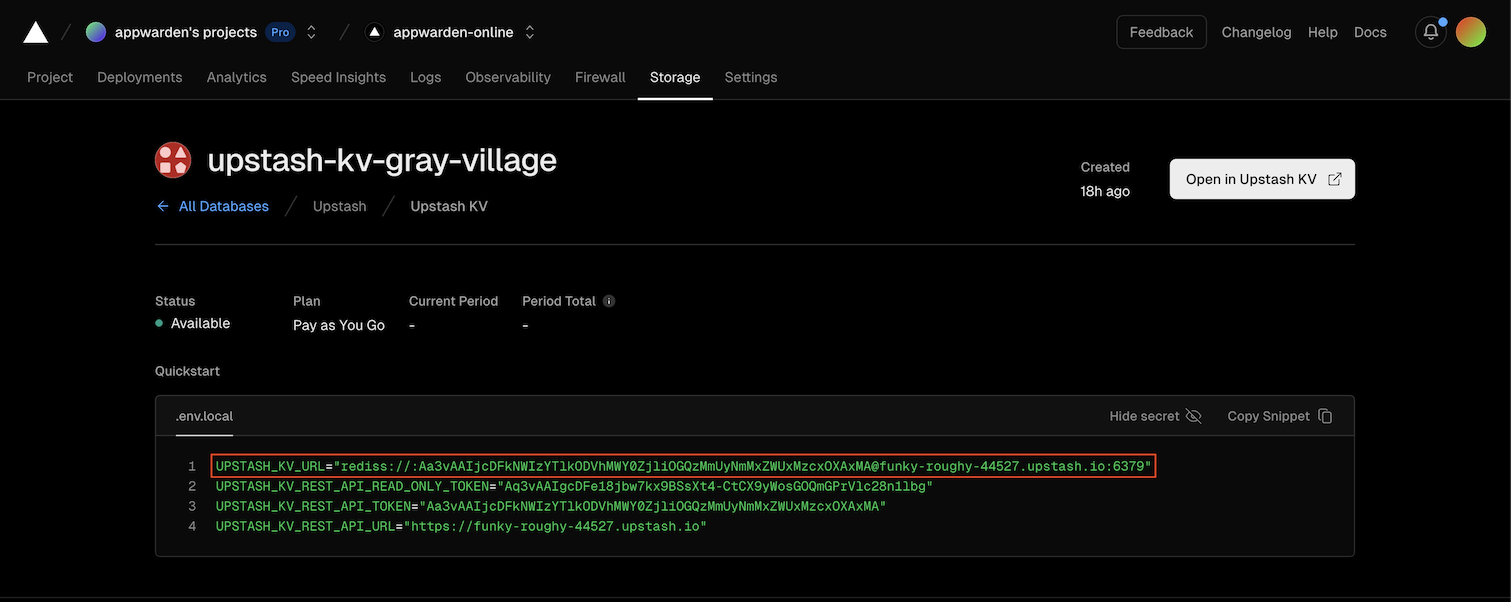
Use the KV_URL variable as the cacheUrl passed to the createAppwardenMiddleware function in your middleware.ts file.
export default createAppwardenMiddleware({ lockPageSlug: process.env.APPWARDEN_LOCK_PAGE_SLUG, appwardenApiToken: process.env.APPWARDEN_API_TOKEN, // use KV_URL variable for Upstash KV (vercelApiToken not required) cacheUrl: process.env.KV_URL,})Vercel Edge Config is a Vercel service that allows you to store key-value pairs in the Vercel Edge Network.
To use Vercel Edge Config as a cache provider, follow the Vercel Edge Config setup guide. The Edge Config integration will generate several environment variables including EDGE_CONFIG.
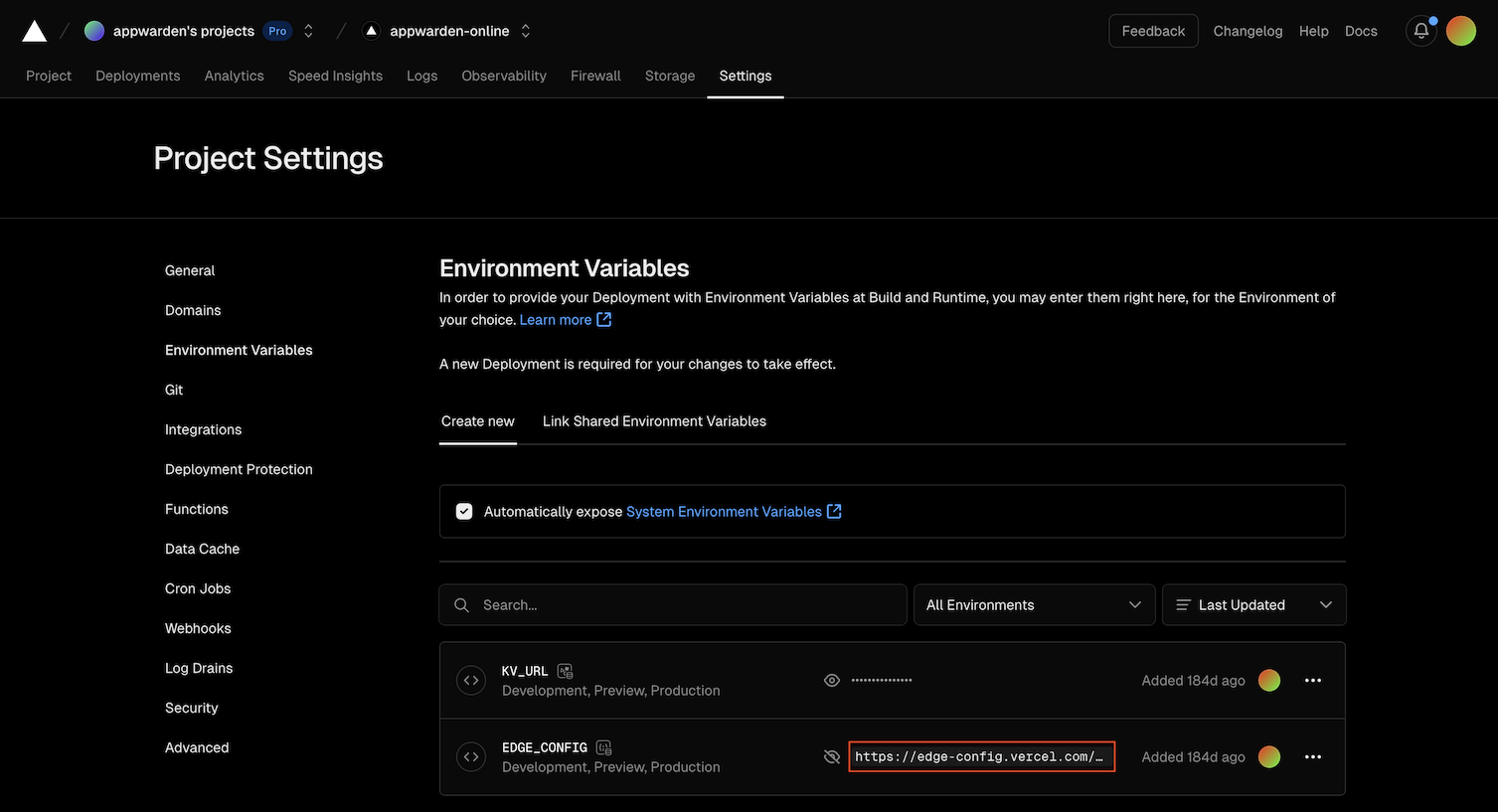
Use the EDGE_CONFIG variable as the cacheUrl passed to the createAppwardenMiddleware function in your middleware.ts file.
export default createAppwardenMiddleware({ lockPageSlug: process.env.APPWARDEN_LOCK_PAGE_SLUG, appwardenApiToken: process.env.APPWARDEN_API_TOKEN, // use EDGE_CONFIG variable for Vercel Edge Config (vercelApiToken is required) cacheUrl: process.env.EDGE_CONFIG, vercelApiToken: process.env.VERCEL_API_TOKEN,})At this point, all four environment variables in the middleware file should be assigned. The middleware is now ready to protect your domain.
To deploy your project with the Appwarden middleware installed, run the following command in your terminal:
# deploy your project with Appwarden middleware to preview environmentvercel# deploy your project with Appwarden middleware to production environmentvercel --prodYour website will still function normally even if Appwarden is misconfigured or unresponsive. Read on to the next section to verify that Appwarden is correctly installed in your project.
If you have any questions or need assistance, please don’t hesitate to reach out to us on Discord.
After deploying your project, inspect your project logs in your Vercel dashboard for error messages from @appwarden/middleware by visiting your website and refreshing it repeatedly. Inspect any errors and adjust your environment before redeploying your project until all errors are resolved.
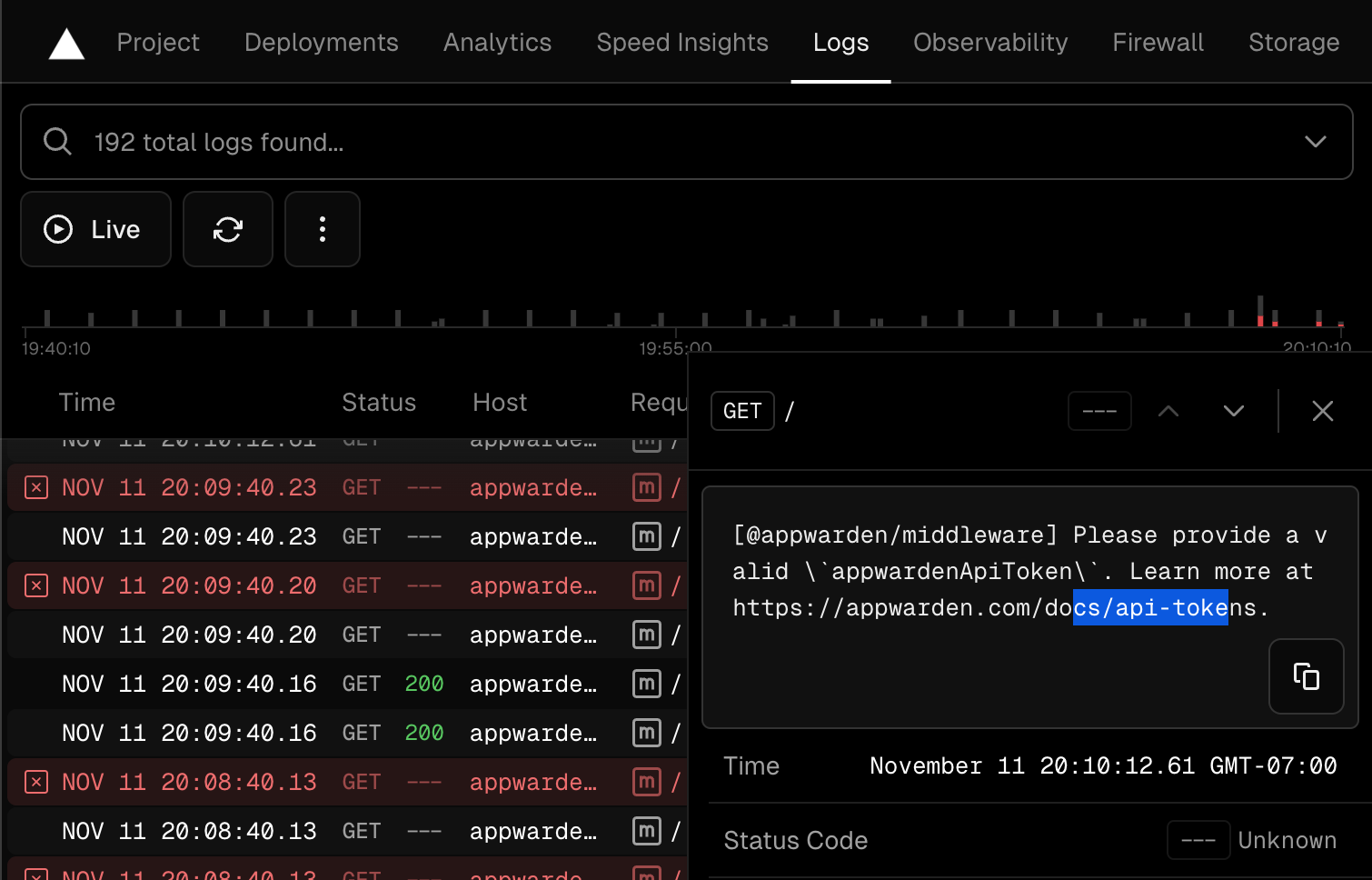
Once any errors are resolved, issue the /quarantine test command. Then, navigate to your.app/_appwarden/test in your browser. If the lock page appears (may take up to 30 seconds), Appwarden is correctly installed in your web project. You may re-issue the test command to unlock your test page.
Congratulations — Appwarden is protecting your domain! In the event of a security breach, you
can now issue the /quarantine lock command in Discord to
quarantine your website within seconds, protecting your
users while the problem is resolved.